
Tuner4TRONIC® Field App - User Manual
Tuner4TRONIC® Field App - User Manual
Updated · by Administrator
On this page
Tuner4TRONIC® Field App - User Manual

Contents
- Warning
- 1 Introduction
- 2 System requirements
- 3 Quick start
- 4 Programming from production file
- 5 Copy/paste
- 6 Edit data
- 7 Report
- 8 NFC scanner
- 9 Read QR code
- 10 Settings
- 11 Compatible products
- Disclaimer
- Service contact
Please note
All information in this guide has been prepared with great care. Inventronics, however, does not accept liability for possible errors, changes and/or omissions. Please check www.inventronics-light.com or contact your sales partner for an updated copy of this guide.
This user guide is for information purposes only and aims to support you in tackling the challenges and taking full advantage of all opportunities the technology has to offer. Individual applications may not be covered and may need different handling. Responsibility and testing obligations remain with the luminaire manufacturer/OEM/application planner.
Google Play and the Google Play logo are trademarks of Google Inc. Android is a trademark of Google Inc. iPhone is a trademark of Apple Inc. App Store is a service mark of Apple Inc.
Warning
WARNING: Incorrect or unauthorized adjustments of a luminaire's crucial parameters might lead to damage or unsafe operation of the luminaire or have an impact on the luminaire certification!
The Tuner4TRONIC® Field app cannot verify the correctness of your configuration for the intended luminaire. You need to be aware of the risk that certain configurations might not be suitable for certain luminaires connected to the Inventronics LED driver and might lead to permanent damage or a change in performance of the overall system.
Consequently, before adapting the configuration of Inventronics LED drivers in any way, always read the driver's technical documentation and application guide, as well as the technical documentation of the luminaire or lighting fixture intended to be used with the OSRAM LED driver.
In any case, do not use the Tuner4TRONIC® Field app to adapt the configuration of a system comprising an Inventronics LED driver unless you have ensured you are completely aware of the consequences of such an adaptation.
1 Introduction
The installation and maintenance of indoor and outdoor luminaires with our NFC technology is as easy as it gets, thanks to the Tuner4TRONIC® Field app, which works on NFC-ready Android smartphones and iPhones. In combination with the corresponding standard luminaires and compatible Inventronics NFC LED drivers, the Tuner4TRONIC® Field app can be used for programming via NFC.
NFC, short for Near-Field Communication, allows programming of the drivers in the field, wirelessly and without mains voltage. In most cases, it is possible to read out the driver's configuration even after the device's failure.
With the Tuner4TRONIC® Field app, certain luminaire settings can be easily adjusted according to specific needs and within a predefined range set by the luminaire manufacturer. For indoor and outdoor applications, a typical example is adjustment of the light output depending on the required application. Using outdoor drivers, the dimming levels can be changed to optimize energy savings, and you can also disable dimming for special applications such as roundabouts or pedestrian crossings.
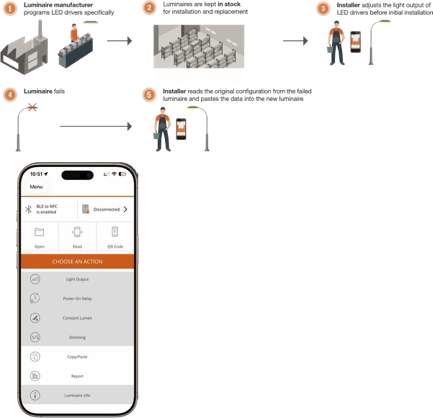
With the Tuner4TRONIC® Field app, replacing a luminaire becomes more efficient. Using the copy-and-paste function, the settings of the original luminaire (indoor and outdoor) can be transferred to the new one in a matter of seconds. There is no need to check how the old luminaire was configured. The process is completely offline, and you are not forced to store your data in a cloud.
Review: The source's offline claim above should be read alongside the Internet-dependent family programming features in sections 4 and 5.
2 System requirements
2.1 Smartphone
The minimum system requirements stated in the source are:
- Android smartphone with integrated NFC antenna (Android OS 6.0).
- Apple (iOS 9) with NFC scanner.
Please note that the quality of NFC antennas built into Android smartphones can vary from phone to phone. Some antennas perform perfectly, and some are completely unusable. The source states that the NFC antennas of the following devices have been tested and recommends them for use with the app:
- CAT S60.
- HTC One M8.
- Samsung S7 and S8.
Review: These are legacy OS requirements and device recommendations; confirm support for the current app before publishing them as current requirements.
2.2 NFC scanner
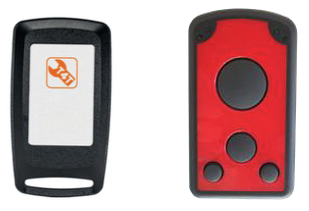
If your smartphone has a low-quality NFC antenna, does not have an NFC antenna at all, or does not allow full use of the internal NFC antenna (such as the iPhone, according to the source), you can use an optional NFC scanner.
This device can be connected to the smartphone via Bluetooth using the Tuner4TRONIC® Field app and provides a reliable and stable NFC connection. It also offers a more comfortable way of programming LED drivers assembled in a luminaire. See 8 NFC scanner.
Source cross-reference correction: The PDF says “chapter 4.7,” which does not exist in this edition; the scanner instructions are in chapter 8.
2.3 Important programming information
When programming an LED driver:
- Press the programming button in the Tuner4TRONIC® Field app.
- After pressing the button, not before, align the NFC antenna of your smartphone (or NFC scanner) with the NFC antenna of the LED driver, marked by the NFC logo, to ensure successful data transfer.
- Do not move the LED driver during programming, to avoid errors in NFC data transfer.
If programming fails and the driver is no longer responsive, power on the driver to reset it.
Safety: For safety reasons, make sure to program LED drivers only when they are not powered by mains.
The position of the NFC antenna in the driver varies between products. As a general rule, the smartphone needs to touch the NFC logo on the LED driver.
2.4 Supported Tuner4TRONIC® files
The Tuner4TRONIC® Field app can only load configuration files with the file extension .osrtup.
2.5 LED driver password protection
For safety reasons, the luminaire manufacturer can protect the safety-relevant settings of the LED driver with a master key and allow editing of non-critical settings, such as dimming and light output, within predefined limits. This ensures that no unauthorized person can modify settings in a way that could cause safety problems.
If an LED driver has a master key set and the app cannot modify its settings, contact the luminaire manufacturer.
For additional protection, the luminaire manufacturer can set a service key on the LED driver. If your LED drivers are protected with a service key, contact the luminaire manufacturer to obtain the corresponding service key so that you can program the protected drivers.
2.6 Supported LED drivers
A link to a list of all compatible LED drivers is provided in 11 Compatible products.
Source cross-reference correction: The PDF refers to “chapter 6”; the compatible-products link is in chapter 11 (and section 10.5).
3 Quick start
3.1 App download
The Tuner4TRONIC® Field app can be downloaded from the App Store and Google Play. For more information, check www.inventronics-light.com/tuner4tronic.
3.2 Quick overview
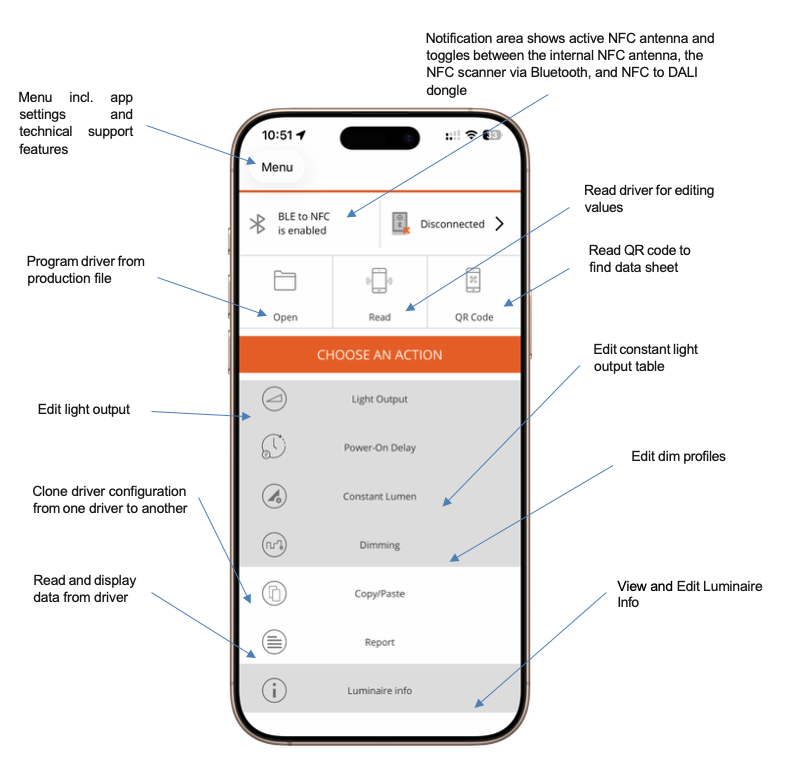
The home screen provides the following controls:
- Notification area: Shows the active NFC antenna and toggles between the internal NFC antenna and the NFC scanner via Bluetooth.
- Menu: Includes app settings and technical support features.
- Read: Read the driver for editing values.
- Open file: Program the driver from a production file.
- QR code: Read a QR code to find the data sheet.
- Light output: Edit light output.
- CLO: Edit the constant light output table.
- Dimming: Edit dimming profiles.
- Report: Read and display data from the driver.
- Copy/paste: Copy data from one driver and paste it to another for driver replacement.
- Luminaire info: Edit luminaire information.
4 Programming from production file
It is possible to load Tuner4TRONIC® production files (*.osrtup) directly from your email.
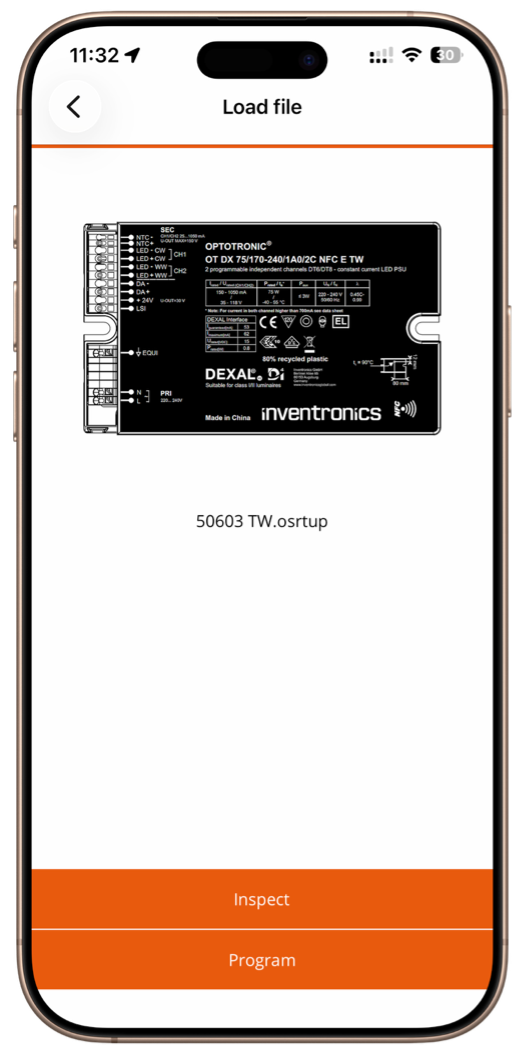
- Inside your email app, share the received production file with the Tuner4TRONIC® Field app. The file is saved in the app's local memory.
- In the Field app, go to the Open file screen.
- Select a production file from the list.
- Press Inspect to view the data in the production file before programming.
- Tap the picture of the driver to view its data sheet in the browser.
- Press Program to program that configuration into your LED driver.
If the smartphone is connected to the Internet, data from the production file can also be used to program next-generation LED drivers through the family programming cloud service.
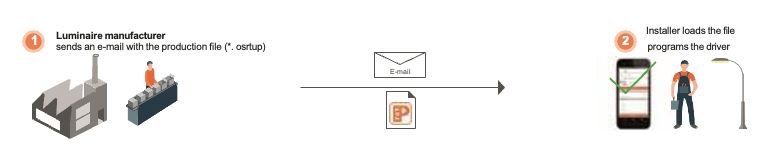
The illustrated workflow is:
- The luminaire manufacturer sends an email with the production file (
*.osrtup). - The installer loads the file and programs the driver.
5 Copy/paste
The Tuner4TRONIC® Field app features a copy/paste function to simplify replacement of the LED driver in a luminaire.
- Press Read and scan the old LED driver with your smartphone.
- Press Write to paste the configuration into the new LED driver.
All driver parameters and settings are copied, including the DALI short address. The unique serial number and monitoring data are not copied.
To allow copying of data to next-generation LED drivers, the app accesses the family programming cloud service if the smartphone is connected to the Internet.
Tap the picture of the driver to open its data sheet in your browser.
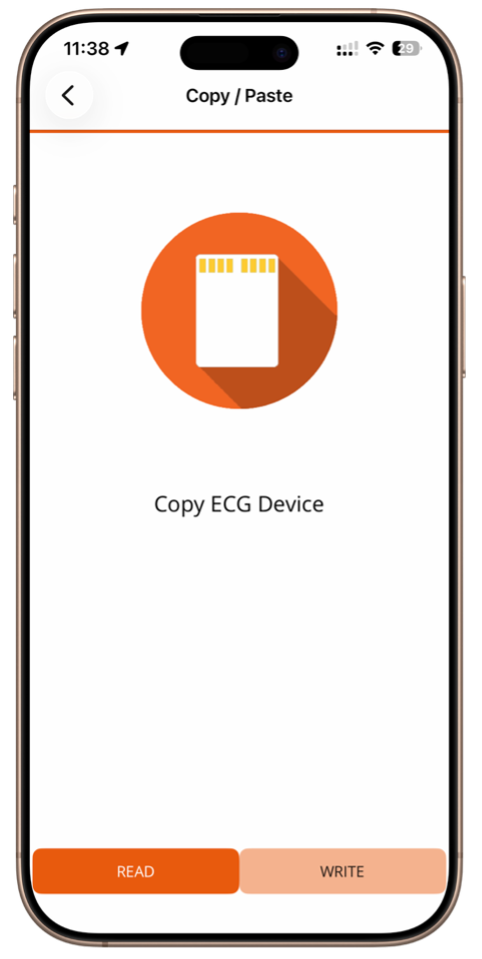
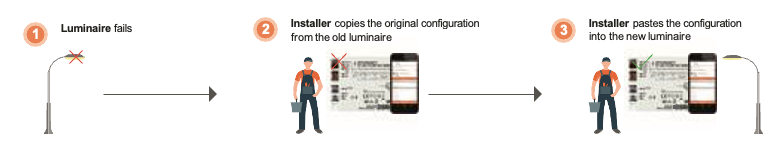
The illustrated workflow is:
- The luminaire fails.
- The installer copies the original configuration from the old luminaire.
- The installer pastes the configuration into the new luminaire.
6 Edit data
6.1 Read driver data
To edit light output, CLO, DIM, or additional luminaire information, first read data from the LED driver by pressing the Read tile. All data is downloaded, edited, and finally uploaded to the driver when you press Program.
Because of this, only the driver that has been read, identified by its serial number, can be programmed with the edited data. To program a second driver, you need to read the data from that second driver first.
6.2 Edit light output
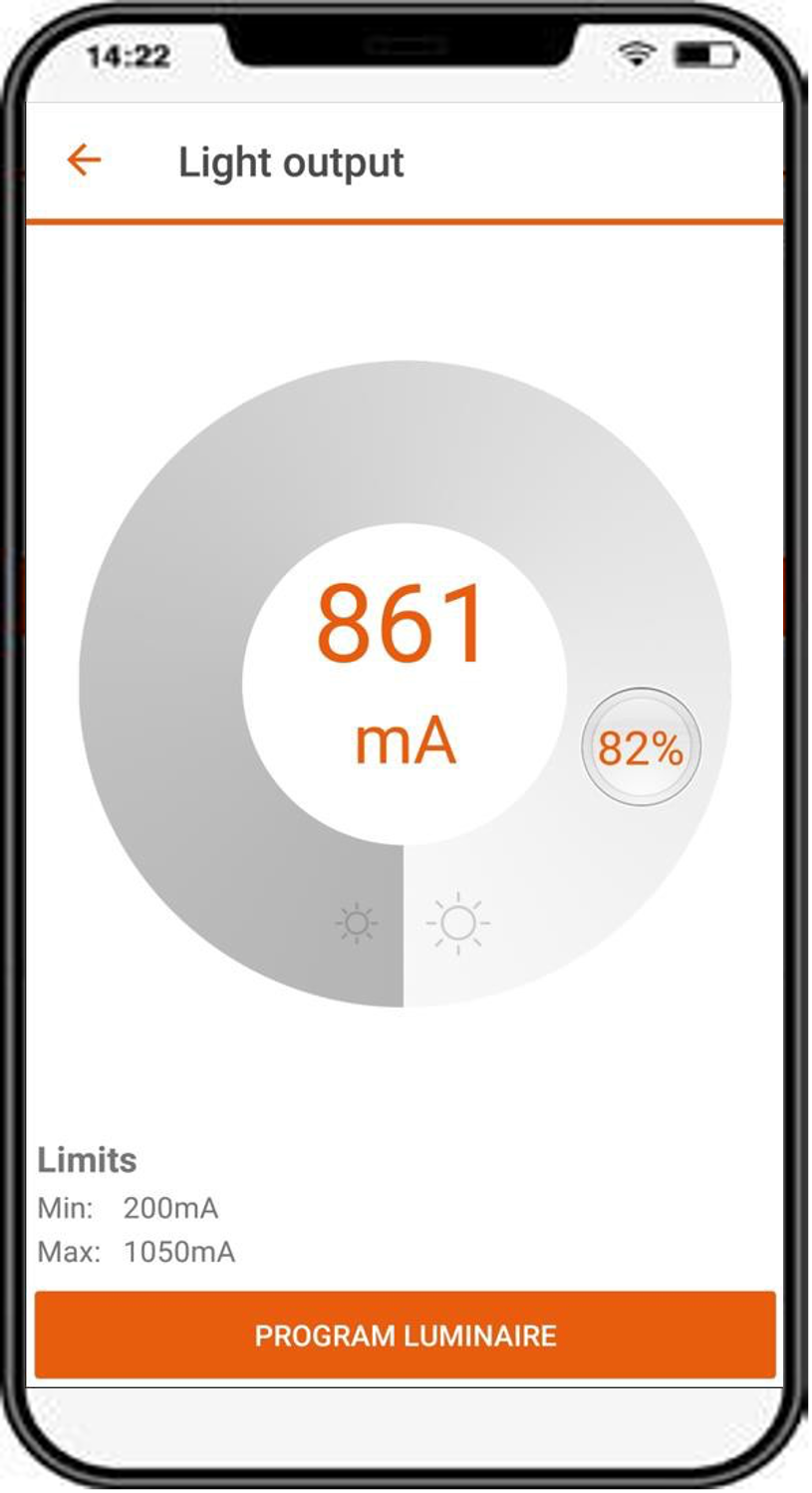
You can modify the LED driver's light output in lumens, percentage, or milliamps.
If the luminaire manufacturer enables Tuning Factor, the app edits only the tuning factor level. The driver's rated current is not changed. Light output can therefore be modified only within the minimum and maximum limits of the tuning factor settings.
If Tuning Factor is disabled, the app directly edits rated current settings within the full range of the output window provided by the driver.
Tap the light output value in the middle of the circle to enter a numeric value.
6.3 Edit dimming profile (outdoor drivers only)
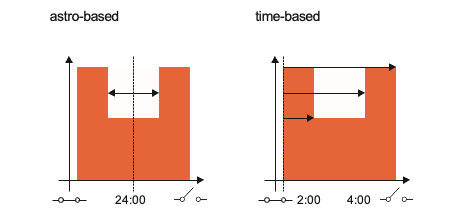
At the top of the dimming screen, choose the dimming mode: Astro-based or time-based. At the bottom, you will find the dimming levels, dimming times, and programming button.
The driver needs to be programmed in an operating mode that features Astro-Dimming to allow the app to edit the dimming profile.
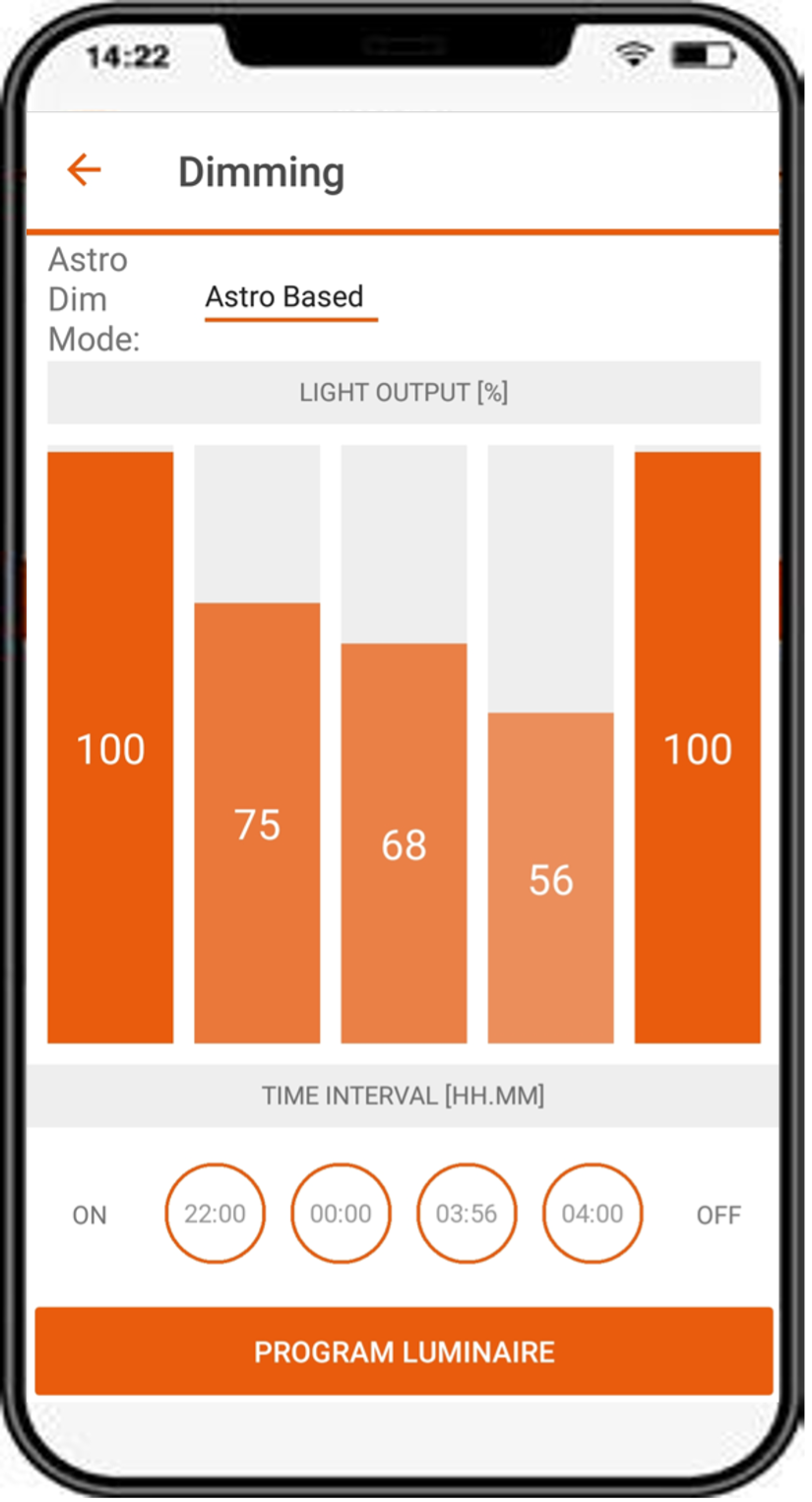
- Astro-based: Dimming levels and times refer to the middle of the night, calculated from sunrise and sunset times.
- Time-based: Dimming levels and times refer to the LED driver's switch-on time.
6.4 Edit constant lumen
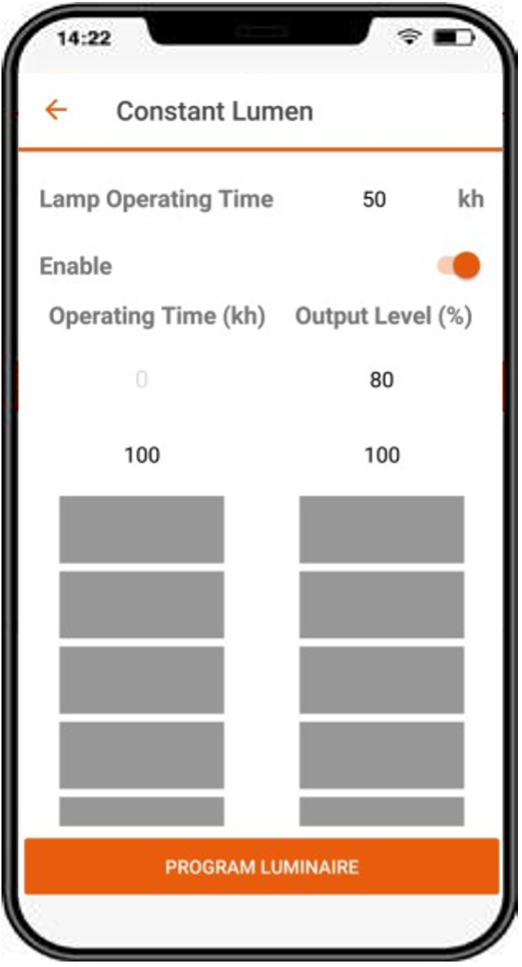
You can enable, disable, and edit constant lumen of LED drivers by entering value pairs for:
- Operating time [kh].
- Output level [%].
You can also edit the actual operating time.
6.5 Edit additional luminaire info
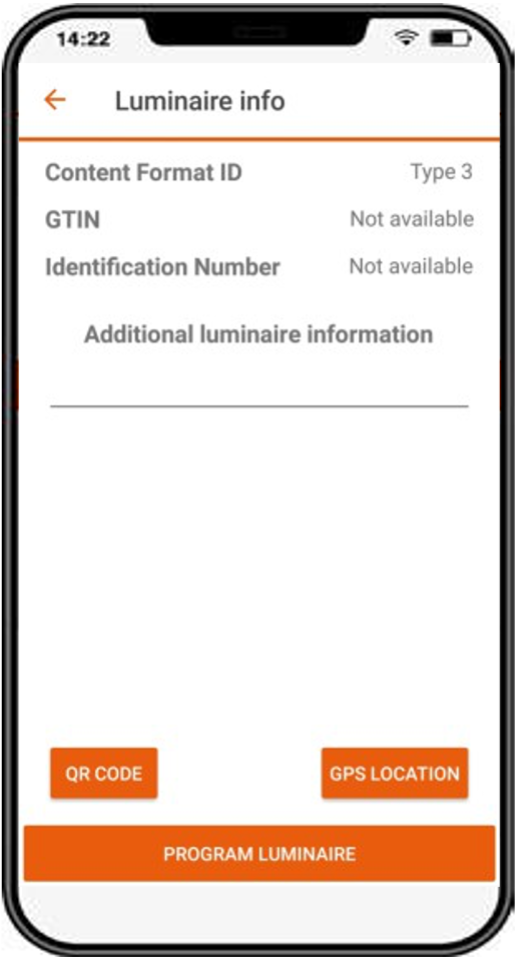
This feature allows editing the additional luminaire info field (DALI MemBank 1) by entering:
- Text.
- A string from a QR code.
- GPS data from the actual location.
If the string represents a valid URL, pressing the info button next to the picture of the LED driver opens the URL in the browser. Preceding blanks and characters after a blank in the middle of the string are ignored.
7 Report
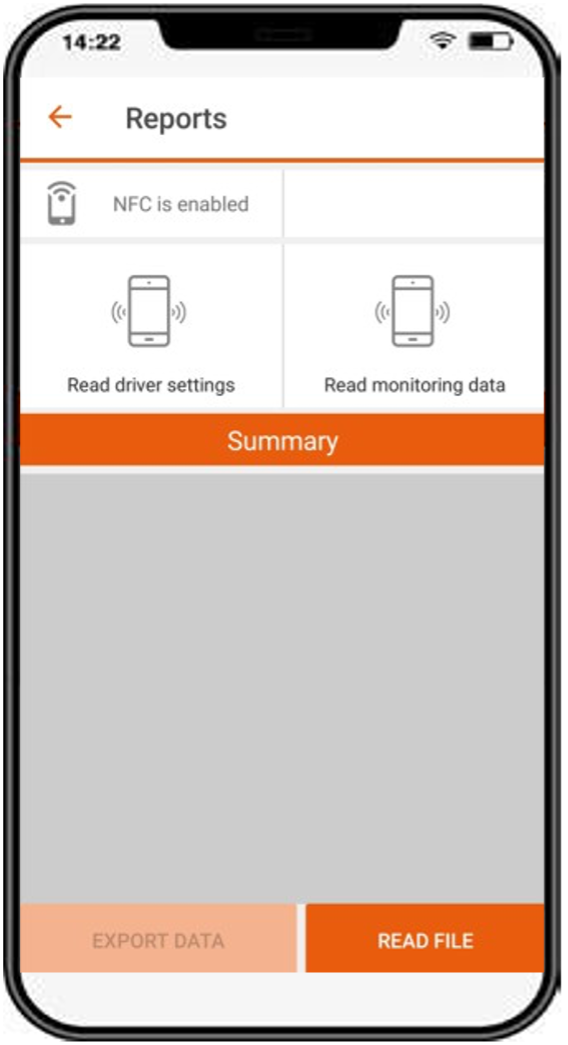
Press Report on the home page to read data and display the LED driver's data settings.
7.1 Driver settings
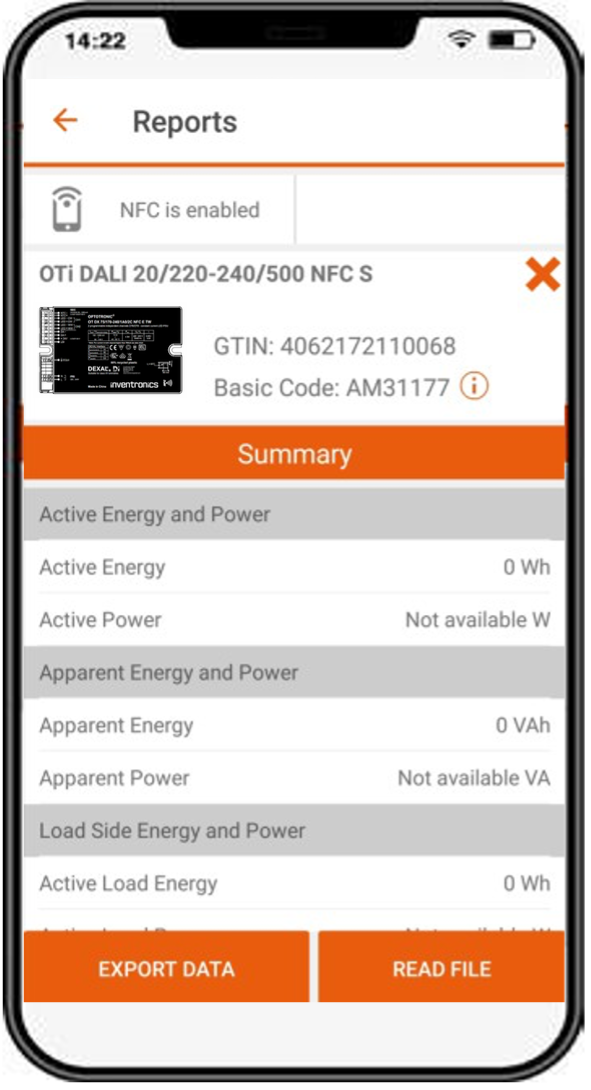
The Tuner4TRONIC® Field app can generate a report of all parameters and settings currently stored in the LED driver.
After reading the LED driver, the app reaches out to a backend service in the cloud to format and display the data. The data (*.osrtur file) can be saved and sent by email for later processing in the T4T-Configurator.
If there is no Internet connection, export the file to local memory, ready for later distribution. You can also read and display data from a saved *.osrtur file using the backend service.
Tap the picture to open the data sheet in the browser.
7.2 Monitoring data
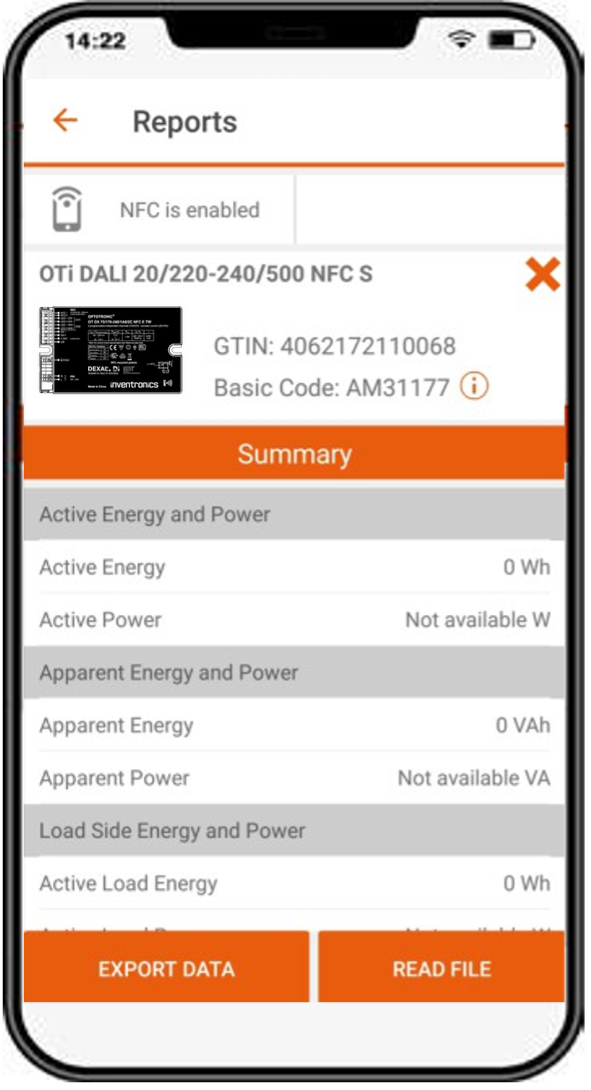
The app can read monitoring data from the LED driver. Monitoring data includes performance data collected by the LED driver during operation, such as working hours and failure counters.
Press Read monitoring data on the reports page. The data can be saved as a CSV file and sent by email.
8 NFC scanner
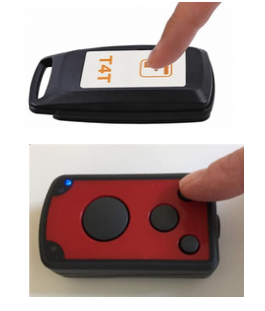
The optional NFC scanner is a Bluetooth-to-NFC adapter that is useful in the following situations:
- The smartphone is too big to reach the LED driver mounted in the luminaire.
- The smartphone's NFC antenna has a low-quality signal.
- The smartphone does not have an NFC antenna.
- Using iOS smartphones or tablets.
The following Bluetooth/NFC scanners have been released with the T4T Field app, according to the source:
| Scanner | Order code |
|---|---|
| Tertium | 4055462290281 |
| Feig ECCO Smart HF-BLE | Feig order code: 5738.000.00 |
How to pair the NFC scanner with your smartphone
On Android smartphones, the internal NFC antenna is selected by default in the app. Follow these instructions to select the NFC scanner as a programming interface.
Review - source ambiguity: The PDF adds “(not available with iOS devices)” to this instruction, while also listing iOS devices as a use case and requiring a scanner for Apple devices. Confirm which part of the selection procedure applies to the current iOS app.
- Make sure Bluetooth is enabled on your smartphone. Open the smartphone settings and turn on Bluetooth.
- Turn on the NFC scanner:
- Tertium: Press and hold the button at the center of the device until you hear a beep. If the blue LED flashes once per second, charge its battery.
- Feig ECCO Smart: Press the button on the right. The blue LED flashes at more than 2 Hz when the scanner is powered.
- Go to the app's main screen and tap the NFC icon in the upper left corner to toggle from the internal NFC antenna to Bluetooth mode. The screen should now show BLE is disabled and Disconnected.
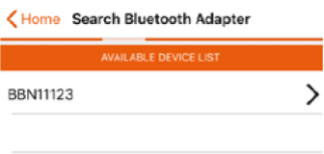
- Tap Disconnected to see the list of available NFC scanners.
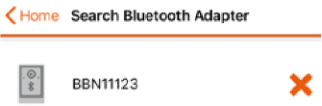
- The app starts scanning for available devices. Wait until your scanner's internal device name appears, then select the scanner to start the connection.
- A pop-up confirms the connection, and the screen shows the connected device.
- Return to the main screen and start reading and programming LED drivers with the NFC scanner.
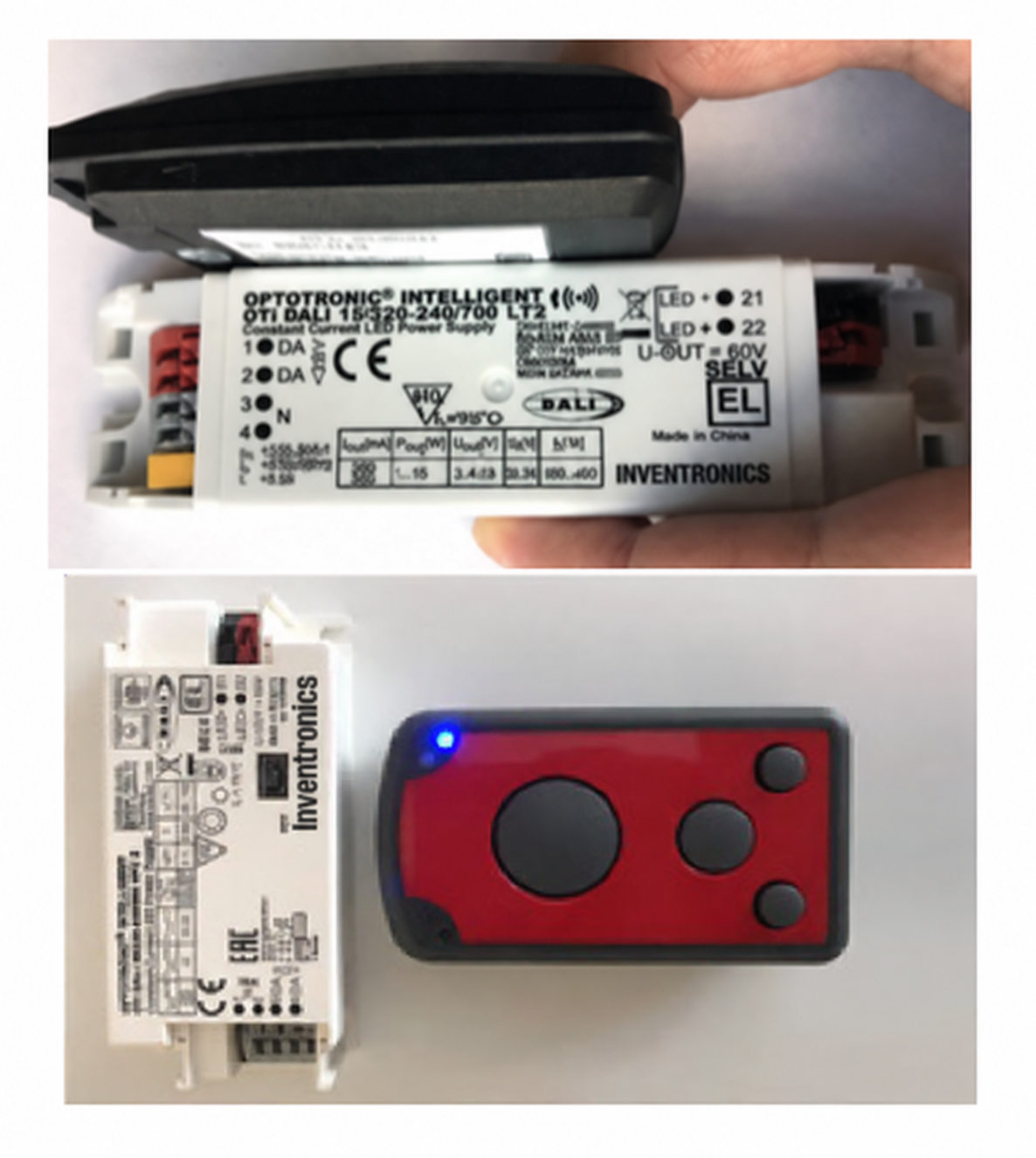
- When reading or programming an LED driver, ensure that the driver touches the NFC scanner. Align the arrow of the NFC logo on the LED driver with the edge between the white label and the black part on the back of the scanner.


Use an NFC passive antenna to improve NFC transmission
Use an NFC passive antenna to improve NFC transmission, as illustrated below.
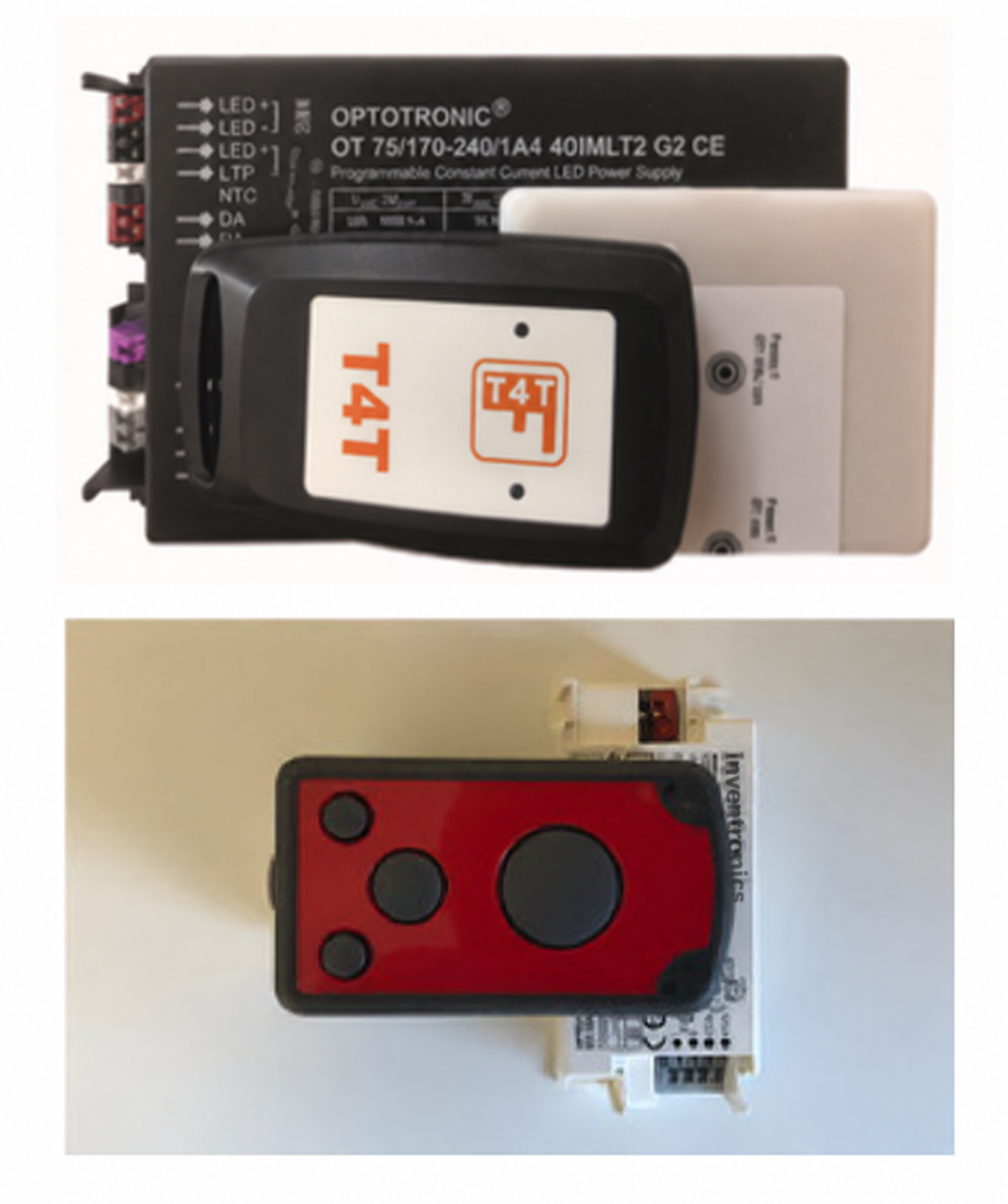
With the Feig ECCO Smart, target the NFC antenna of the driver either from the front or the bottom of the scanner.
9 Read QR code
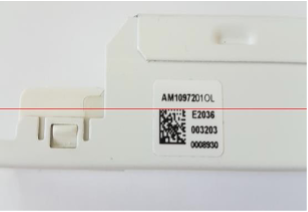
Press the QR code button to open the driver's data sheet on the Inventronics home page. Make sure the QR code is centered and focused, with its upper edge touching the red bar.
10 Settings
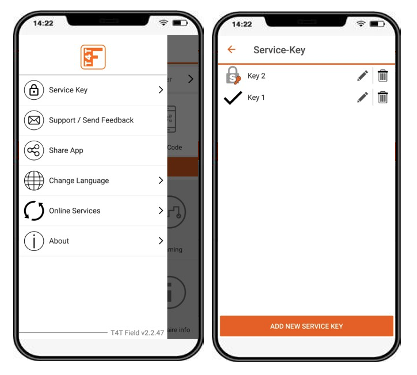
Open app settings by sliding from left to right or pressing the hamburger menu.
10.1 Service key password management
If the luminaire manufacturer has protected the driver with a service key to avoid unauthorized modifications, enter a service key in the app. Only users with a valid service key can edit the driver configuration.
To make handling easier, you can save multiple service keys in the app and give them names. The active key is indicated by a check mark.
During programming, the app uses the activated service key and authenticates it automatically. If the key is correct, the app proceeds with programming. If the key is wrong, the user receives an error message.
The source's password-protection diagram describes these protection cases:
- No password protection of the LED driver, equivalent to a brand-new driver.
- Master key password protection of the LED driver does not allow any modification.
- Password protection allowing modification of dedicated features.
- Service key password protection allows modification only to installers with the service key.
Its accompanying captions describe a distributor selling a brand-new driver to an installer, and the following installer outcomes:
- Can edit data in the LED driver with the Field app.
- Cannot edit data in the LED driver with the Field app (*).
- Can edit dedicated features in the LED driver with the Field app.
- Can edit data in the LED driver with the Field app only after entering the service key in the app.
(*) Source note: There are no restrictions for programming a driver from a production file that includes the encrypted master password.
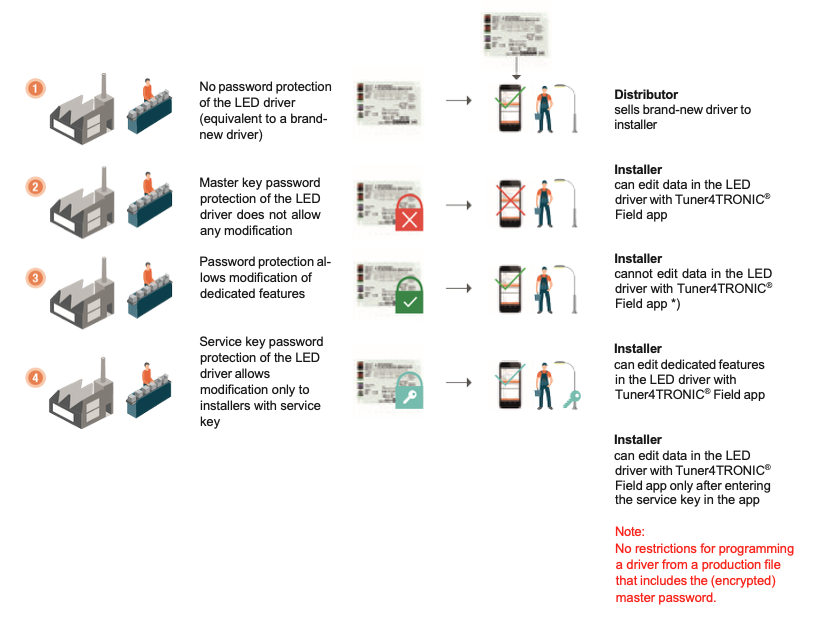
Review: The diagram's captions are vertically offset from the illustrated rows. The original graphic is retained to preserve that context; confirm the intended case-to-outcome mapping before replacing it with a table.
10.2 Support/send feedback
In the left side menu, below the report, select Support/Send Feedback. The smartphone's default email app opens with a template for sending a message to the Tuner4TRONIC® support team for help, feature requests, or additional feedback.
10.3 Share app
The app provides a simplified way to share it with co-workers. Select Share App in the left side menu. The smartphone's default email app opens with a direct link to download the app.
10.4 Change language
Select your language.
10.5 Online services
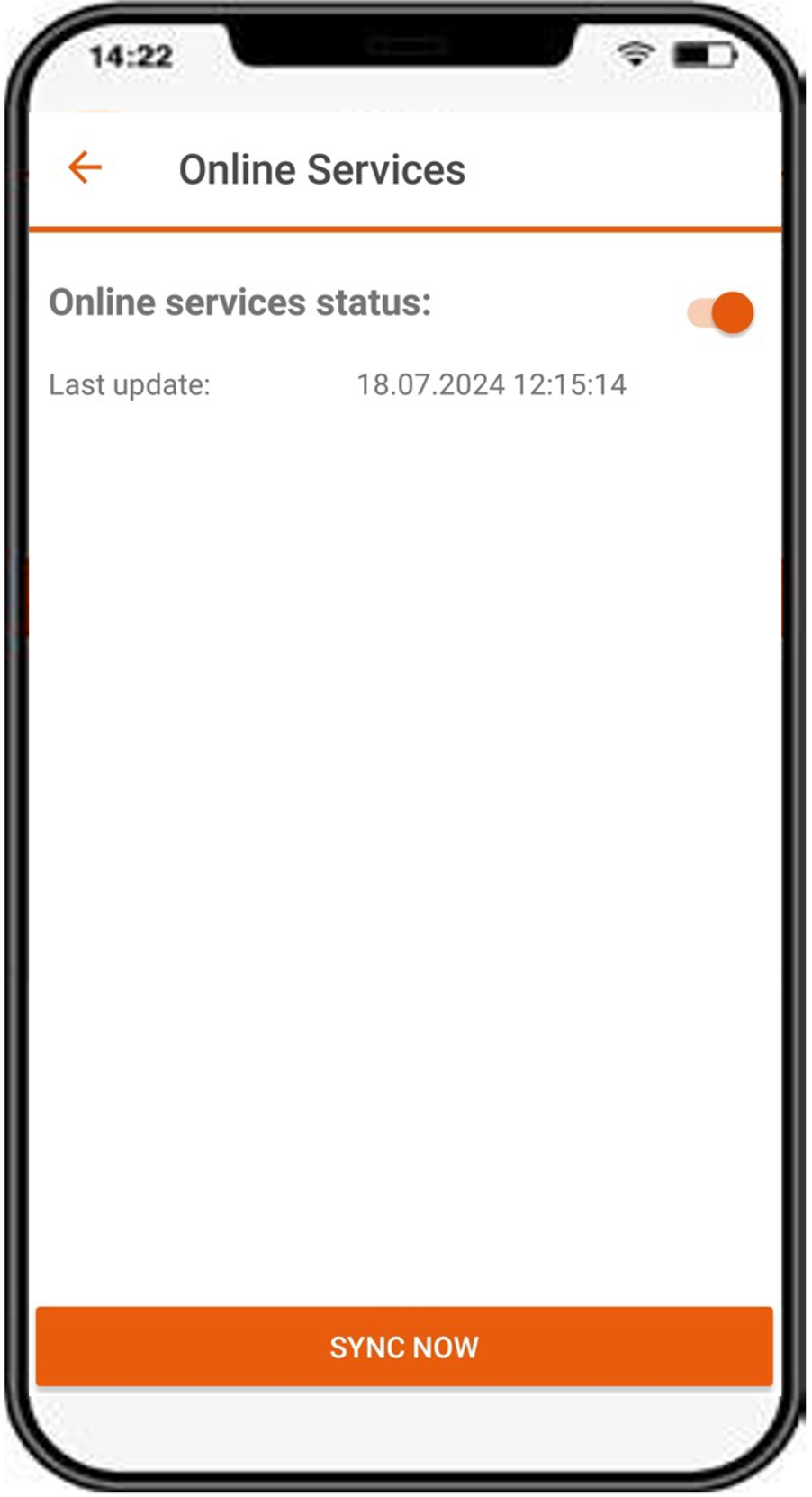
Activate Online Services and press Sync Now to update supported drivers. If online services are activated, the app updates supported drivers in the background each time the app starts.
To find out which drivers are supported, check the supported drivers list.
10.6 About
The About menu contains the imprint, privacy policy, terms and conditions, software licenses, and user manual.
Links to application guides and tutorials can also be found on the Terms & Conditions page.
11 Compatible products
Check the list of drivers supported by the Tuner4TRONIC® Field app.
Disclaimer
All information contained in this document has been collected, analyzed, and verified with great care by Inventronics. However, Inventronics GmbH is not responsible for the correctness and completeness of the information contained in this document, and Inventronics GmbH cannot be made liable for any damage that occurs in connection with the use of and/or reliance on the content of this document. The information contained in this document reflects the current state of knowledge on the date of issue.
Service contact
Inventronics GmbH
Parkring 31-33, 85748 Garching, Germany
t4tsupport@inventronicsglobal.com
www.inventronics-light.com
Source cover website: www.inventronicsglobal.com.